


Introduction: Getting Started with Poppo Live
This guide will walk you through the essential steps to set up and use Poppo Live like a pro. Whether you're new to live streaming or just getting familiar with the app, this guide will help you create your first live stream, interact with your audience, and explore key features.
Prerequisites & Setup
Before you begin, ensure you have the following:
A compatible smartphone (iOS or Android).
A stable internet connection (Wi-Fi recommended for live streaming).
The latest version of Poppo Live installed from the App Store or Google Play.
A registered Poppo Live account. If you don’t have one, follow the steps below to create it.
Core Step-by-Step Guide
Step 1: Installing the App
First, download Poppo Live from the App Store (iOS) or Google Play Store (Android). Tap 'Install' and wait for the app to download and install on your device.
Step 2: Creating Your Account
Open the app and tap 'Sign Up.' Enter your email address or phone number, create a password, and complete the verification process. Follow the on-screen instructions to set up your profile.
Step 3: Navigating the Main Dashboard
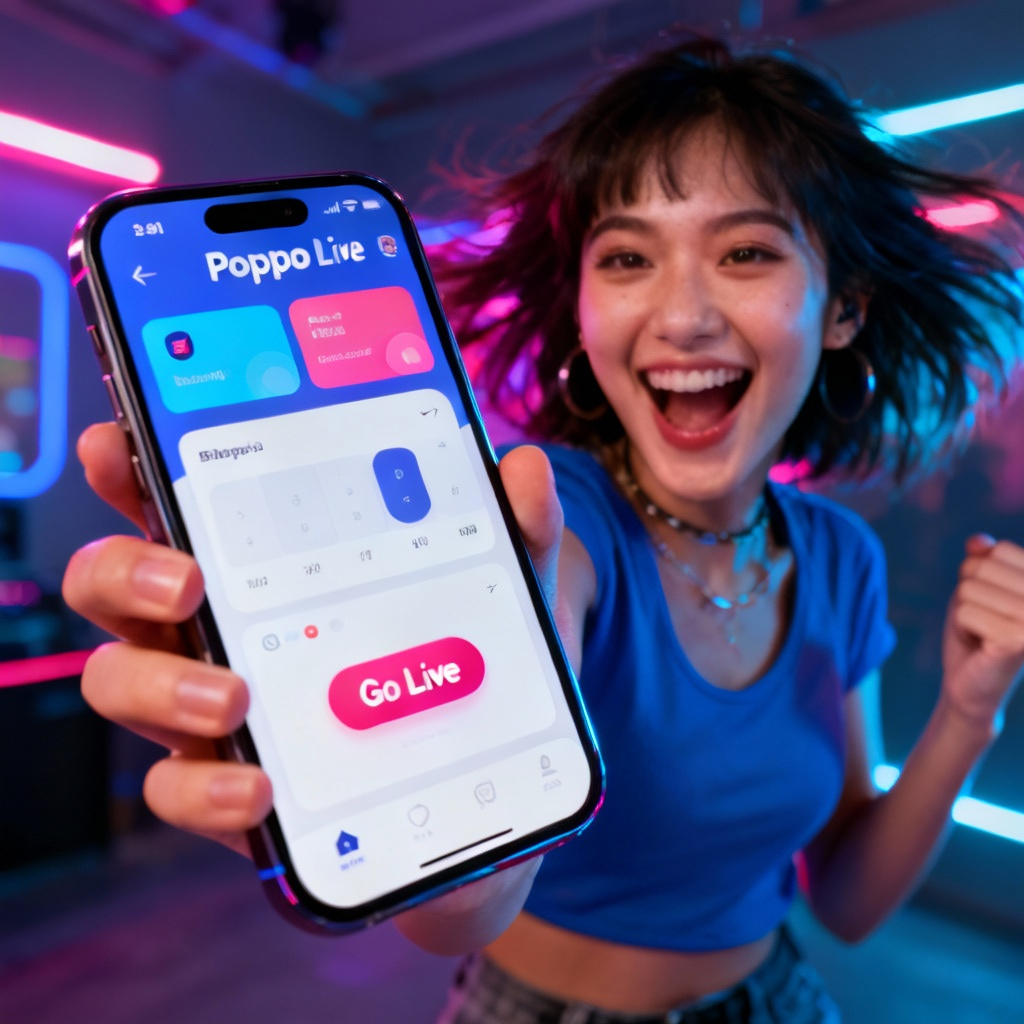
Once logged in, explore the main dashboard. Familiarize yourself with the 'Go Live' button, the 'Discover' tab for browsing streams, and the 'Profile' icon to manage your settings.
Step 4: Starting Your First Live Stream
Tap the 'Go Live' button. Add a title for your stream, choose a category, and set your stream to public or private. Tap 'Start Live' to begin broadcasting.
Step 5: Interacting with Your Audience
Use the chat feature to respond to viewers. Tap the 'Gift' icon to acknowledge gifts and the 'Share' button to promote your stream on social media.

Common Mistakes to Avoid
Starting a live stream without testing your internet connection, which can lead to interruptions.
Forgetting to set a catchy title or category, making it harder for viewers to find your stream.
Ignoring audience interactions, which can reduce engagement and viewer retention.
FAQ
Q: How do I change my stream title after starting?
A: Tap the 'Edit' button on the live stream screen and update your title.
Q: Can I save my live stream for later viewing?
A: Yes, enable the 'Save Stream' option before starting your live session. The recording will be available in your profile.
Q: How do I block or report a user during a live stream?
A: Tap on the user’s name in the chat and select 'Block' or 'Report.'
Final Checklist & Key Takeaways
✔️ Install Poppo Live and create an account.
✔️ Familiarize yourself with the main dashboard.
✔️ Test your internet connection before going live.
✔️ Set a catchy title and category for your stream.
✔️ Engage with your audience using chat and gifts.
By following these steps, you’ll be ready to start your live streaming journey on Poppo Live with confidence!
Explore more about Poppo Live features and advanced tips to enhance your live streaming experience.